
Appearance
Product
The Product module is the catalog behind everything Pulse sells. Every line item on a Deal, Sales Order, Work Order or Delivery Order points back to a product record created here.
A product carries its identification (name, SKU, MPN, PIN), its classification (type, category, unit, size), its pricing, and its stock position — so the rest of Pulse can quote it, build it, and ship it without re-entering any of it.
In this section
- Create a Product — the New Product form, section by section
- Group Products — collecting variants under one parent item
- Product Details — the detail view, tabs, and actions
- Field Reference — every field, limit, and validation rule
What you can do
| Action | Where |
|---|---|
| Browse and sort the catalog | Products list |
| Search by name or SKU | Search box above the table |
| Narrow the list by name, SKU, category, tag, unit, reorder level or created date | Filter |
| Add a product | Create New Product |
| Add one without leaving a deal or order | Create Quick Product, from the product picker — see Create a Product |
| Open a product's full record | Click the product name |
| Edit, or export | Product detail page |
| Collect related products under one parent | Product groups |
Stock cannot be adjusted by hand in Pulse
Quantity on hand is derived, not typed: it moves as sub-assembly and main-assembly inventory changes and as Sales Orders are delivered. There is no stock-adjustment screen in the portal today, so a count that looks wrong is a question for whoever owns the inventory feed, not something to correct here. Adjustments made outside the portal still show up on the product's Transactions tab and in its History.
Edit, Export and Delete are permission-gated
They come from the products module's edit and export grants. Without either one the ⋯ button is not rendered at all — so a missing button is a permission question, not a bug. See Who can do what.
The Products list
The list is the module's home screen. Each row is one product; the Name and Created Date columns stay locked in place while the rest of the table scrolls horizontally.
| Column | Shows |
|---|---|
| Name | Product name — click it to open the record. Group parents show a Groups badge with the member count |
| Created Date | When the product was added |
| SKU | Stock keeping unit |
| Category | The catalog category it belongs to |
| Tags | Labels applied to the product; extra tags collapse into a +n chip |
| Unit | Unit of measure |
TIP
Use the + control in the table header to add more columns. Your column choice is remembered per browser, so the list looks the same next time you open it.
The nine columns you can add
Six columns are shown; nine more are hidden until you add them from the + control.
| Hidden column | Shows | Sortable |
|---|---|---|
| Stock on Hand | Quantity currently in stock | Yes |
| Reorder Point | The reorder level set on the product | Yes |
| Manufacturer | Who makes it | No |
| MPN | Manufacturer part number | No |
| Vendor Part Number | A copy of the SKU — see Product Details | No |
| HSN Code | Customs classification | No |
| ECCN | Export control number | No |
| Cost Price | What it costs | No |
| Selling Price | What it sells for | No |
Seven of the nine cannot be sorted
Only the fields the server can order by are sortable. Stock on Hand and Reorder Point sort normally; the other seven show as unsortable rather than offering a sort that quietly falls back to the default order. Sort on those by exporting the list instead.
Search
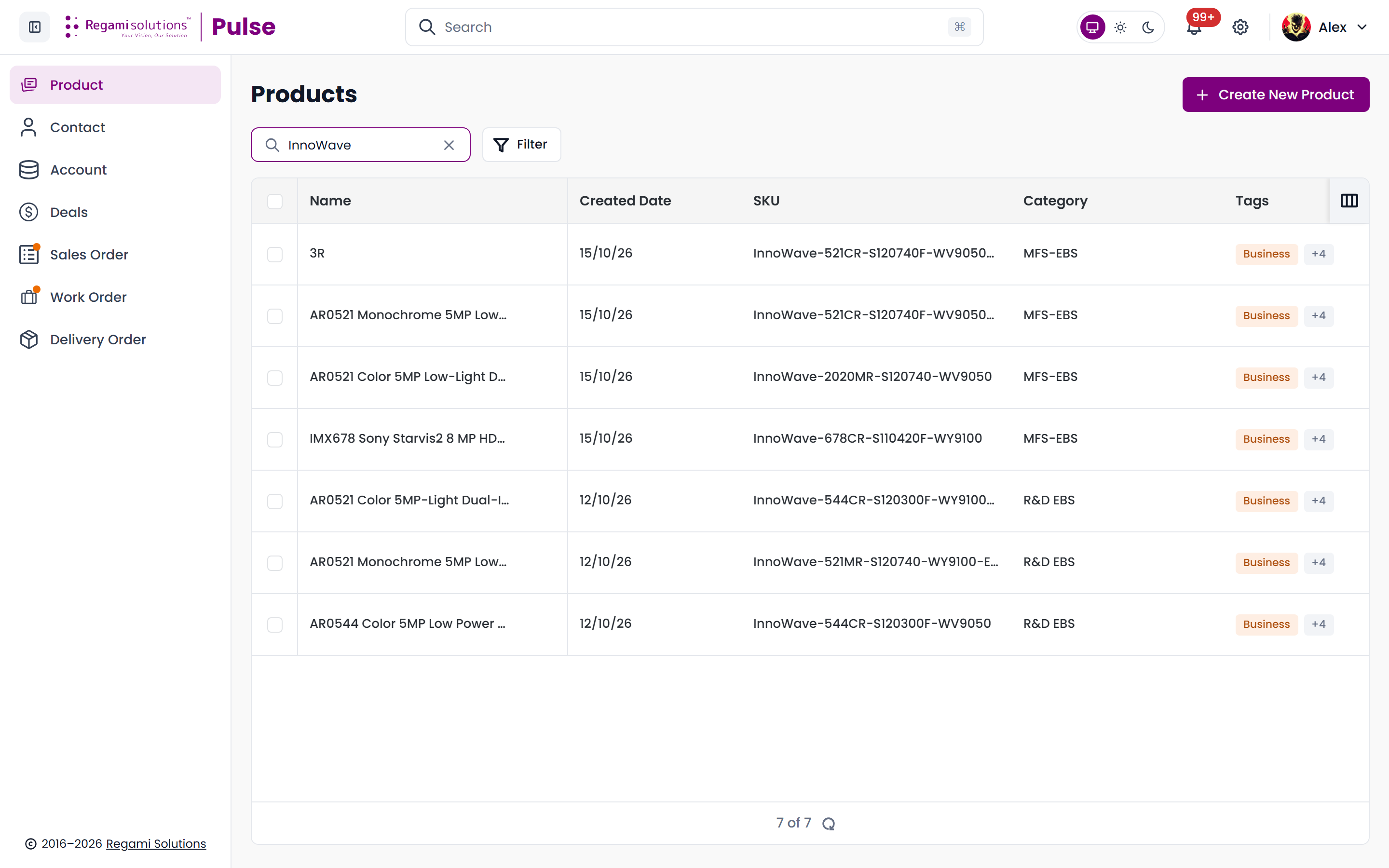
Type into the search box above the table to match on product name or SKU. The list filters as you type, and the result count below the table updates to match.
Filter
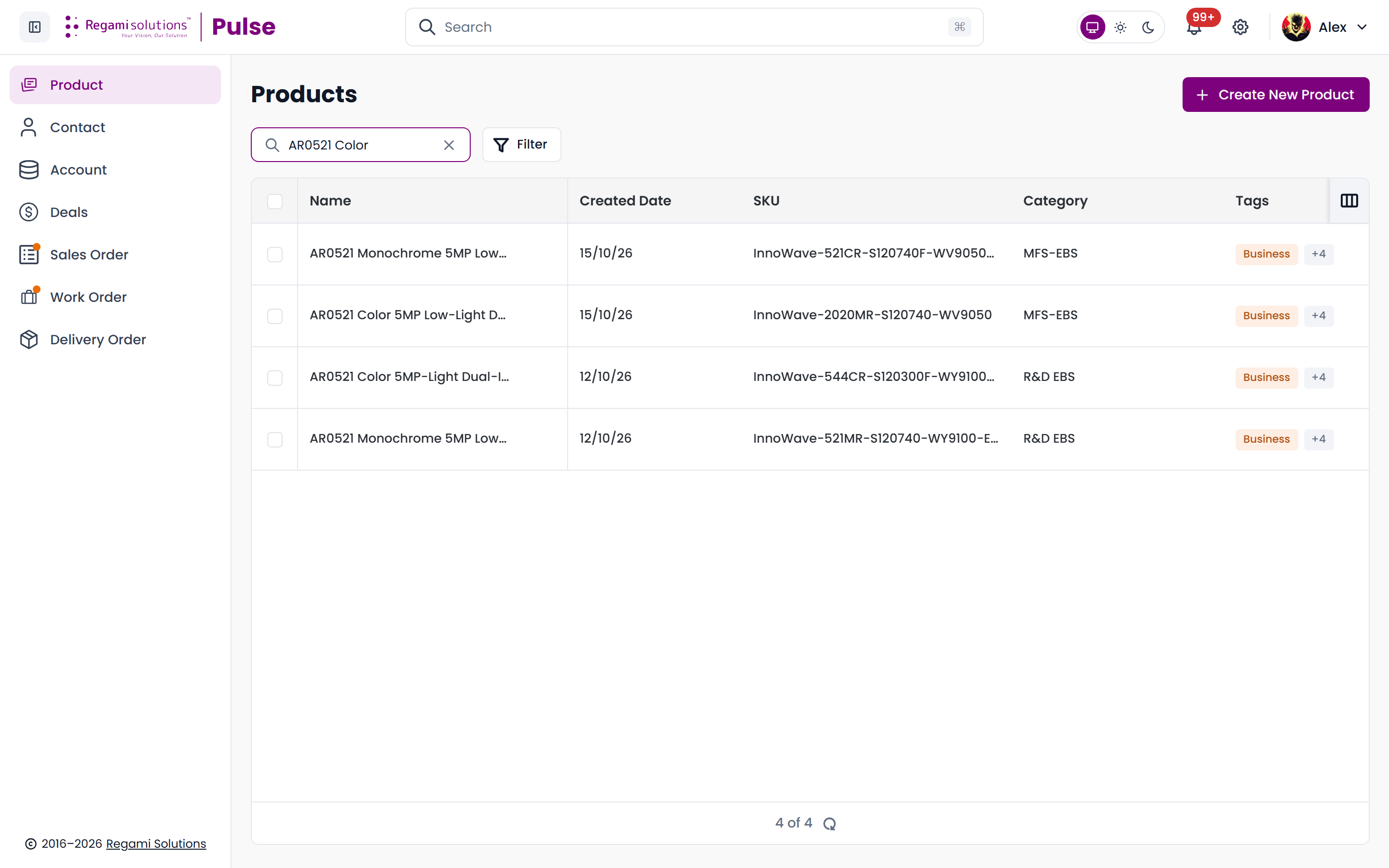
Filter opens a panel for narrowing the list down by the catalog's own fields, without losing your place in the table.
| Filter field | Shown when the panel opens |
|---|---|
| Name | Yes |
| SKU | Yes |
| Category | Yes |
| Tags | Yes |
| Created Date | Yes |
| Unit | No — add it |
| Reorder Level (numeric) | No — add it |
The two that are not shown are reached through + Add field, which only appears while at least one field is still unshown.
There is no Status filter
Products have no status to filter on. If you are looking for stock position, add the Stock on Hand column instead, or filter on Reorder Level.
Tags
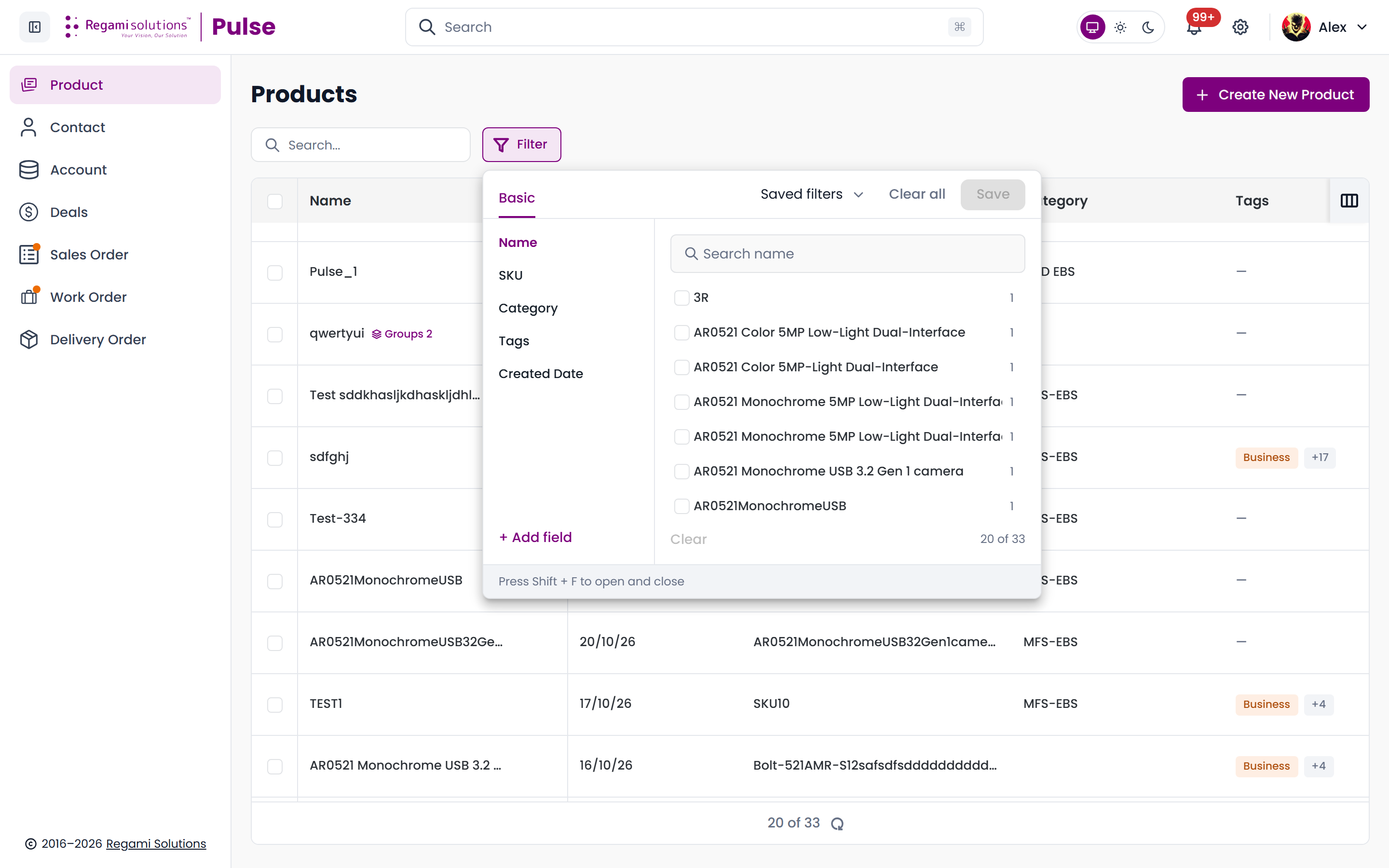
Tags are free-form labels you attach to products — Business, Sales, a project code, anything your team sorts by. They show in the Tags column, with extra ones collapsed into a +n chip.
WARNING
Tags are not part of the New Product form. There is no Tags field when you create or edit a product — tagging always happens from the Products list, on products that already exist.
Applying tags
- Tick one or more products in the list
- Click Set Tag in the selection bar
- Tick the tags you want, untick the ones you don't
- Click Apply
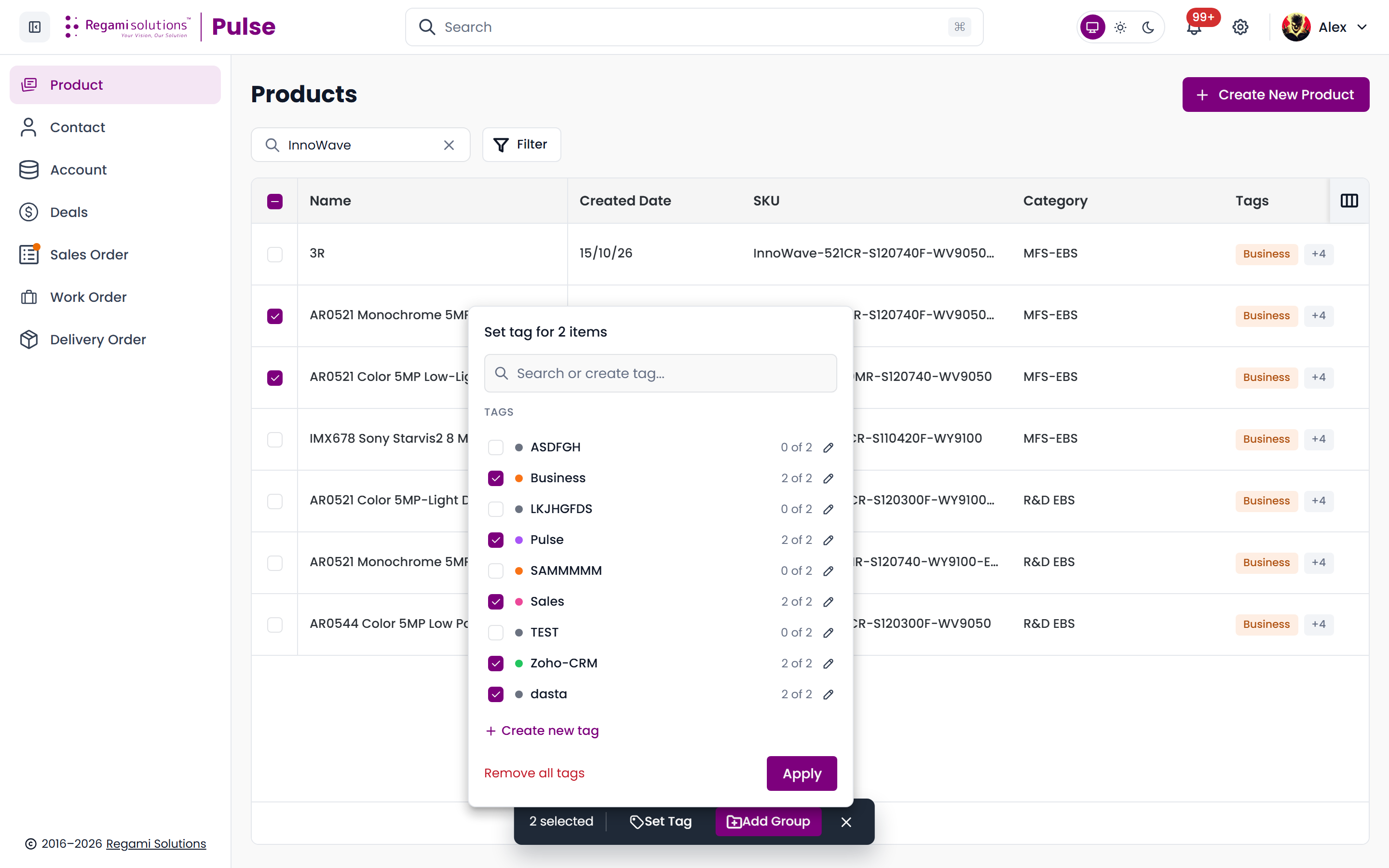
The popover is headed "Set tag for N items" and each tag shows how many of your selected products already carry it:
| What you see | Meaning |
|---|---|
2 of 2 | Every selected product already has this tag |
0 of 2 | None of them has it |
1 of 2 | Some have it — leave it alone and the mixed state is preserved |
That last case matters: a partially-applied tag you don't touch stays exactly as it is on each product. Only tags you actually tick or untick are changed.
Search or create tag… filters the list as you type; No tags found means nothing matched.
Creating a new tag
Click Create new tag at the foot of the popover (or type a name that doesn't exist yet and use the same link).
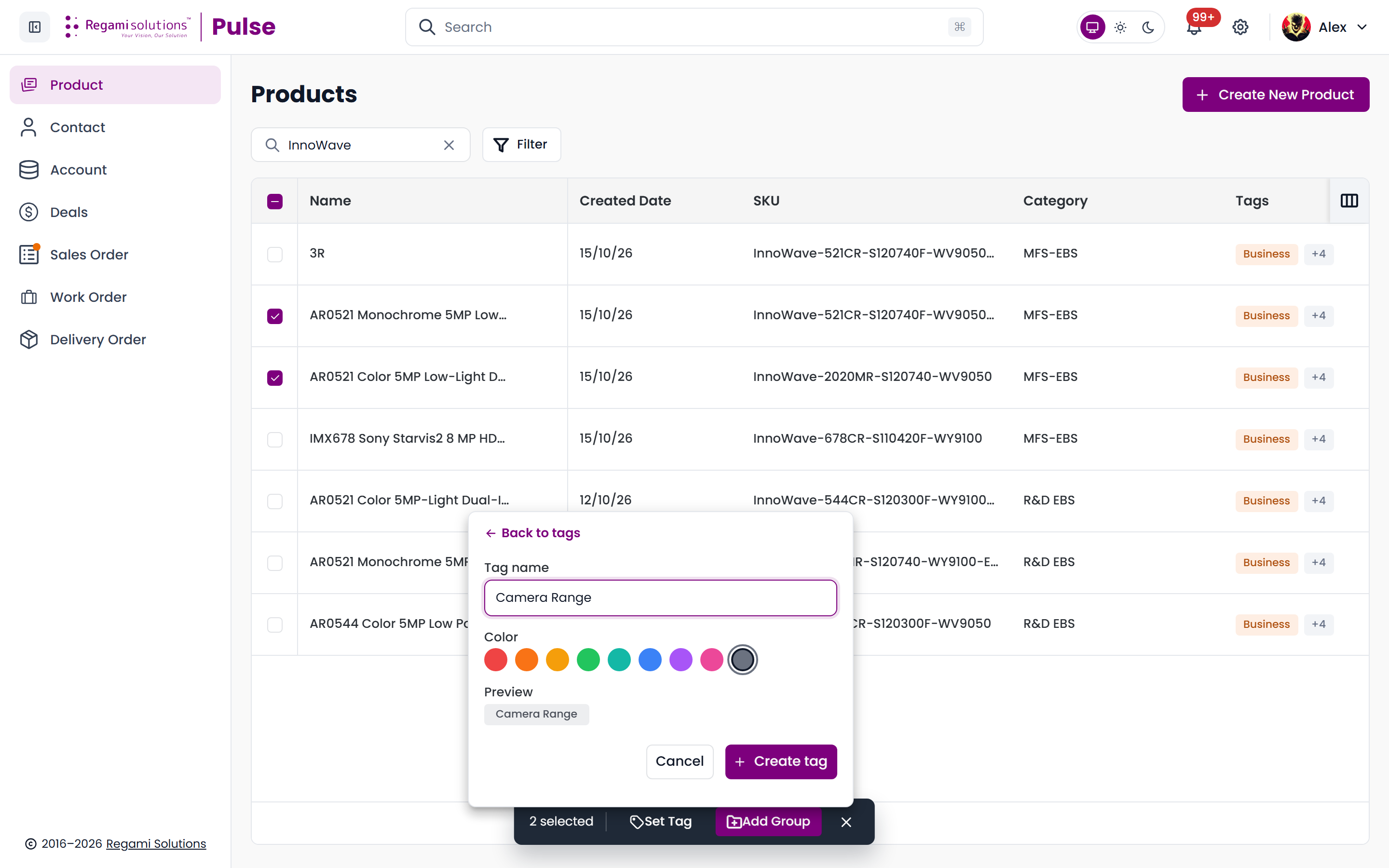
| Field | Rules |
|---|---|
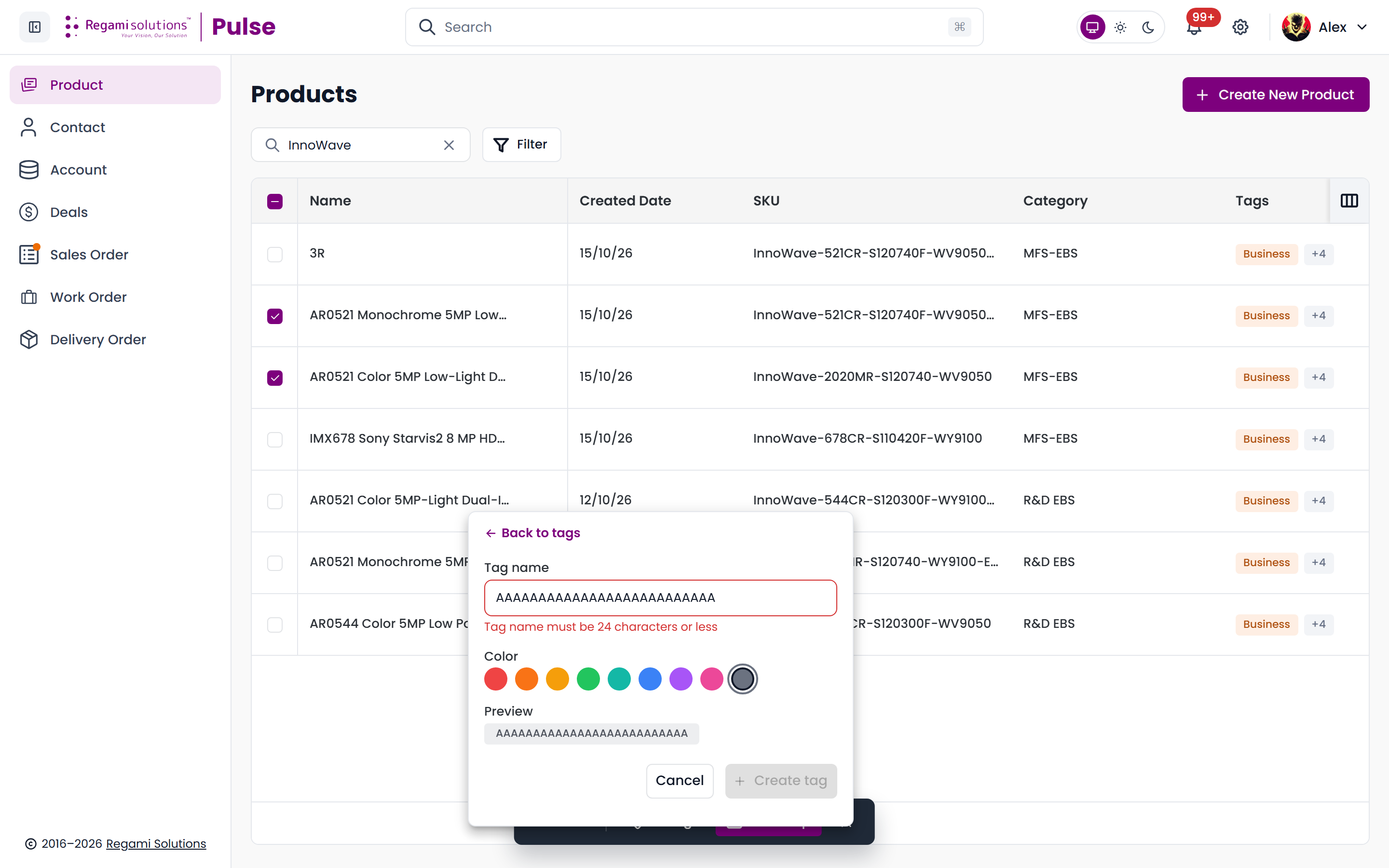
| Tag name | Required, 24 characters maximum |
| Color | One of nine — red, orange, yellow, green, teal, blue, purple, pink, grey. Defaults to grey |
Preview shows the finished pill as you type, so you can see the colour before committing. Create tag is disabled until the name has something in it and is within the limit; Back to tags returns to the list without creating anything.
Over the limit you get "Tag name must be 24 characters or less" and the Create button stays disabled.
Renaming and removing
- Rename — click a tag's edit control, change the name, and save. Pulse shows "Renaming 'old'…" then "'old' is now 'new'", or "Could not rename 'old'" if it fails. Renaming affects every product carrying that tag.
- Remove all tags — strips every tag from the selected products in one go. It is disabled when there is nothing to strip, with the hint "The selected items have no tags to remove" — or "The selected item has no tags to remove" when you have picked just one.
Single products and groups
The list holds both kinds of record. A row carrying a Groups badge and a member count is a group — a parent item collecting related products, such as the same camera in several interface options. Everything else is a single item: one product, one SKU, one stock position.
Opening a group shows its shared details and a table of its members instead of the usual tabs.
→ Group Products covers creating groups, the selection rules, and adding members.
Where Product sits in the flow
Product is the first step in the Pulse chain. Everything downstream points back to a record created here.
What happens next. A product becomes a line item on a Deal, which is raised against an Account and its Contacts. When the deal is won it becomes a Sales Order; that drives a Work Order to build or pick it, and a Delivery Order to ship it. The quantities on those orders are what feed the CPO and FPO figures on the product's stock panel.
TIP
Because every downstream document references the product record, changing a selling price does not rewrite orders already raised — those keep the price captured at the time. See Pricing for how the current prices and margin are shown.
Who can do what
Everything in this module is gated on the products module's own grants.
| Grant | What it allows |
|---|---|
| view | Opening the list, any product and every tab |
| create | Create New Product, and Create Quick Product from a deal or order |
| edit | Edit, Add Product to a group, and Delete (ungroup) a group |
| export | Export a product record, and exporting the list |
A missing button is usually a missing grant
The ⋯ menu on a product shows Export only with the export grant, and Delete on a group only with edit. With neither grant the ⋯ button itself is not rendered — there is no disabled state and no message explaining why. If a colleague can see an action you cannot, compare grants before raising it as a fault.
Related
- Create a Product — fill in the New Product form correctly first time
- Field Reference — every validation rule in one table
- Deals — how products become line items